
The Cybertect agent is available to download within this article.
On double clicking the .dmg file you will be prompted the following options
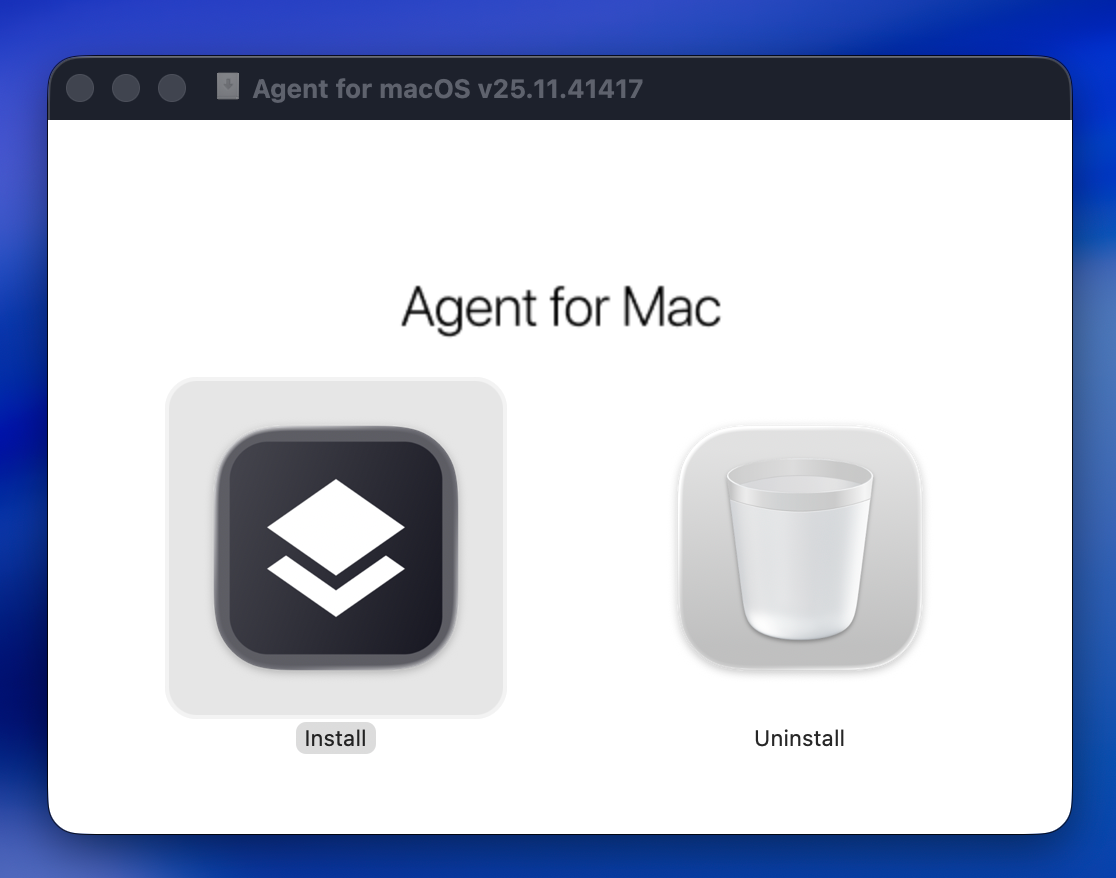
Double click on the Install icon on the left and let the agent install.
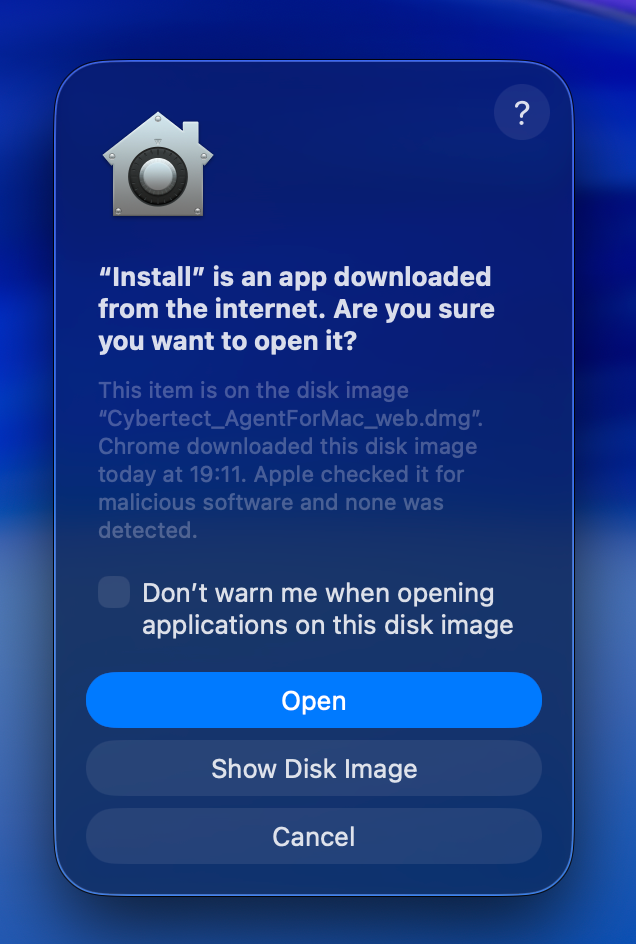
You will have to click the Open button to start the install process as you have 'downloaded this from the internet'
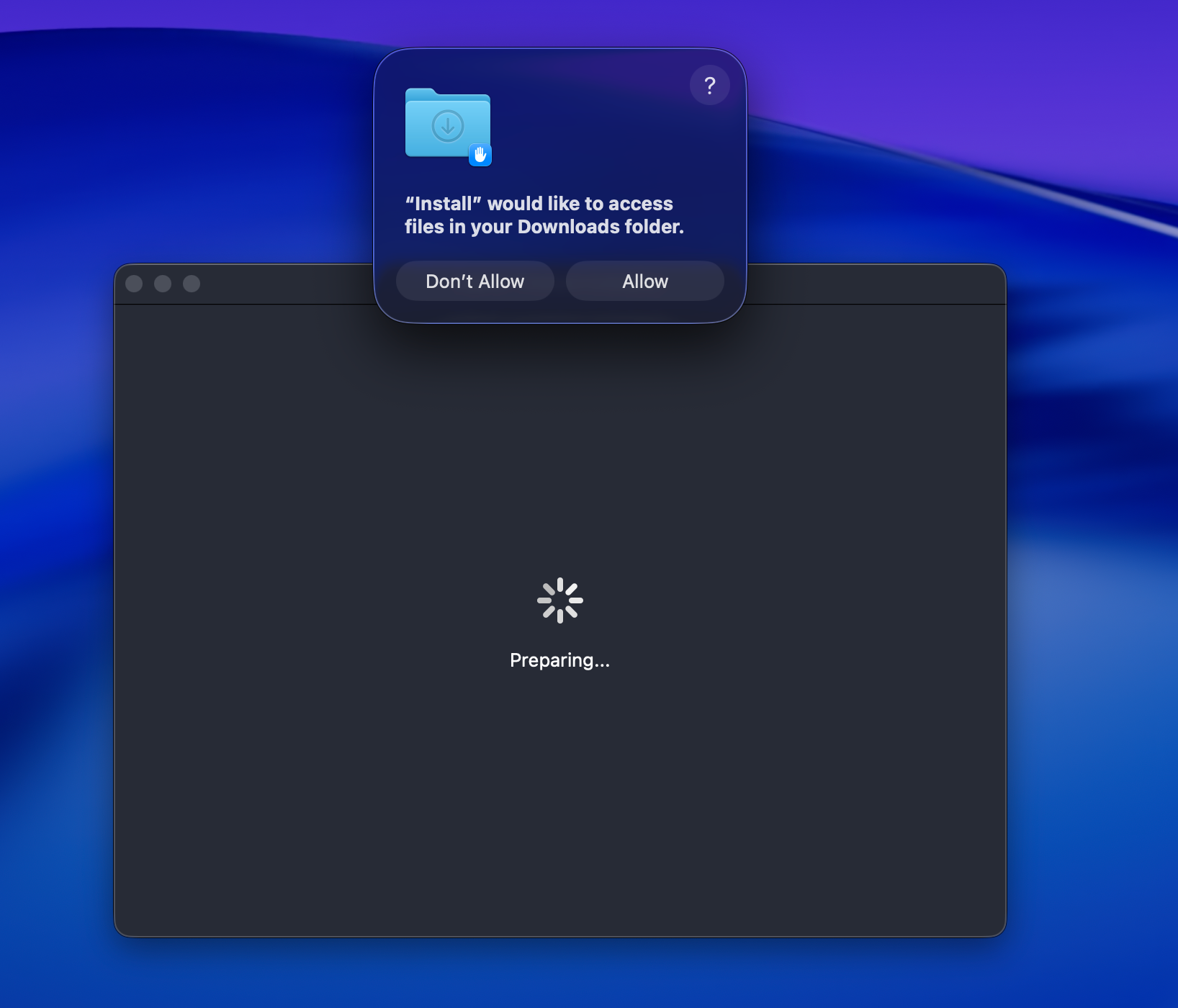
You might be asked to 'Allow' access to the Downloads Folder, again, just click Allow.
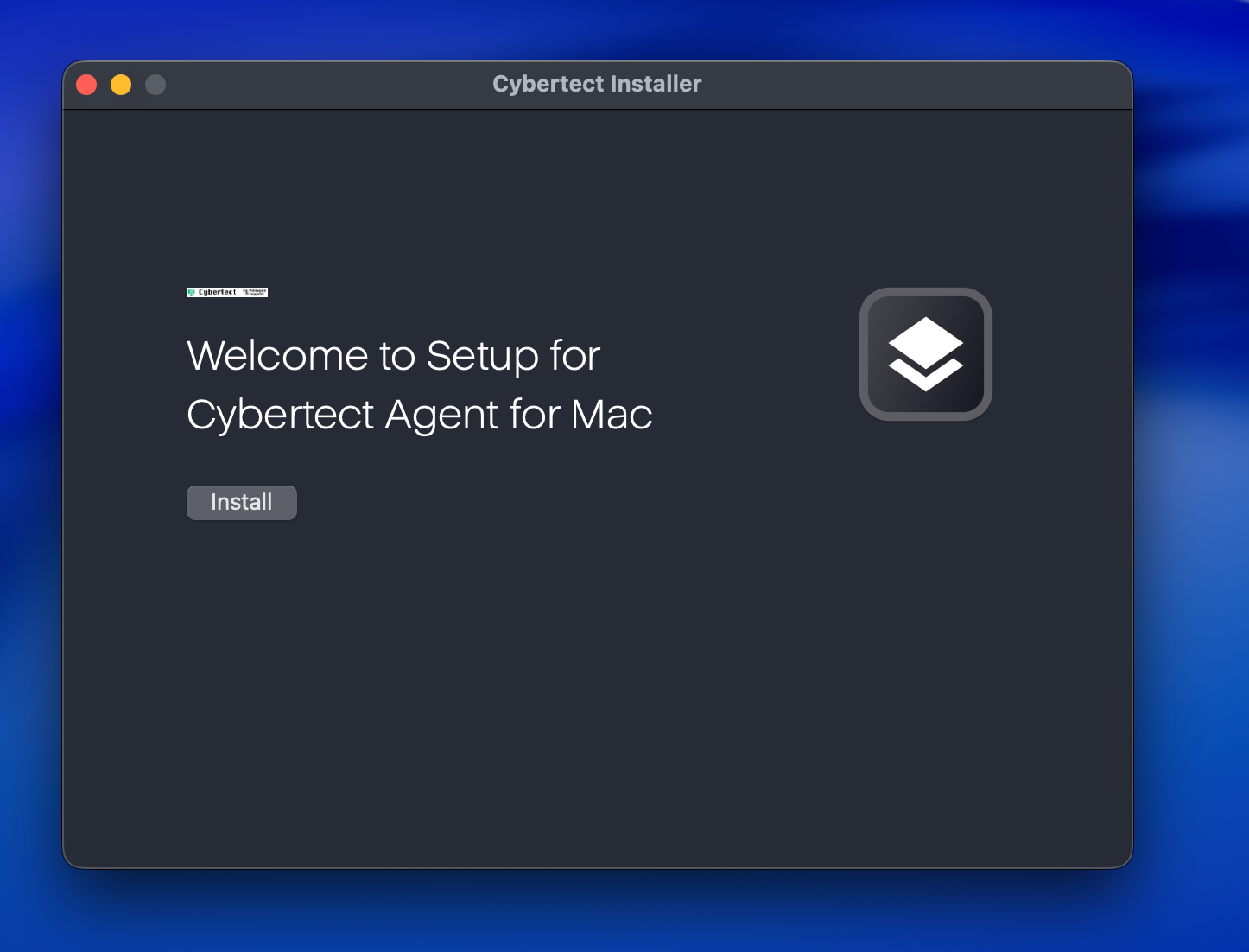
Click on Install and the application will install, it should take just over a minute.
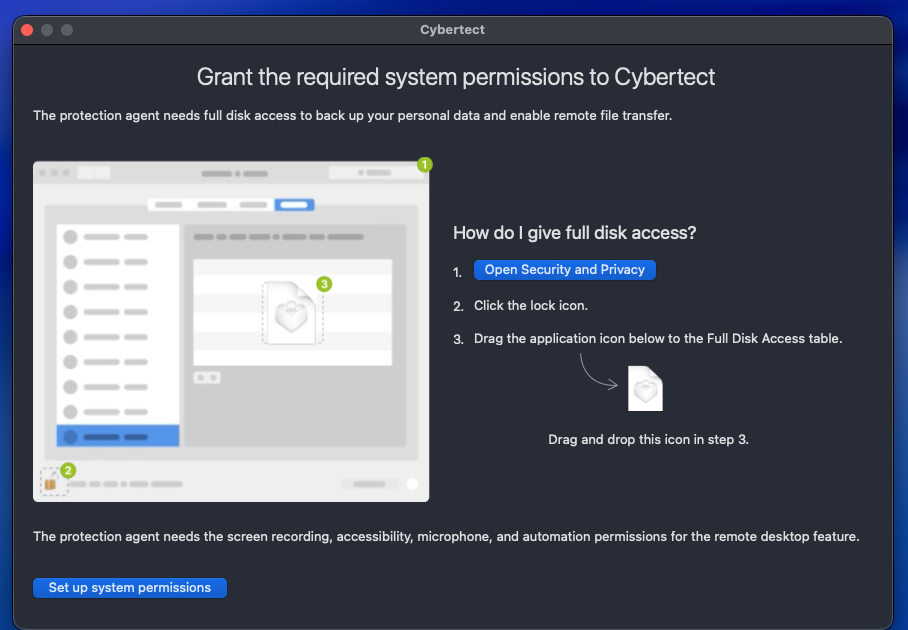
You then need to click on the 'Open Security and Privacy' button with will open the Security and Privacy centre... You will or should be on the full disk access page, if you have this locked (indicated by the closed padlock) please unlock it be entering your login password. Then when it is unlocked, you need to drag the WHITE ICON on the above example on your open window, AND DRAG IT TO THE SECURITY AND PRIVACY LIST!!! This will inject the needed CPC toggles for you to turn on if they aren't already!
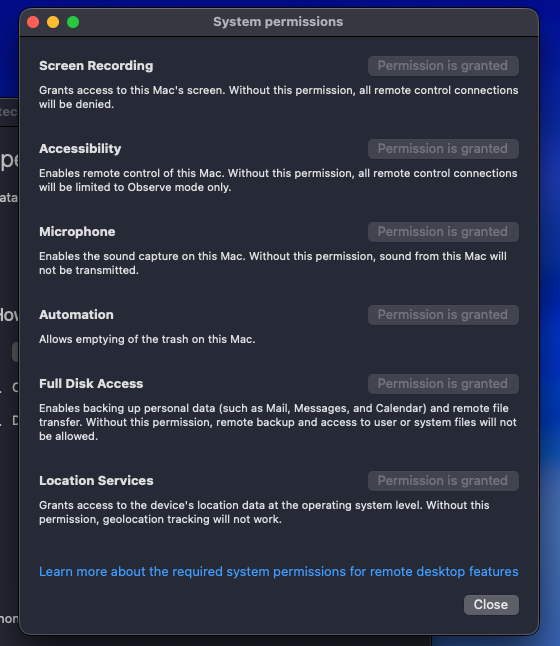
Then the application window will offer this window where you can click on each button (which will be BLUE) and turn each CPC toggle on. When the permission has been granted it will ask you to restart the agent and you should see greyed out buttons as above!
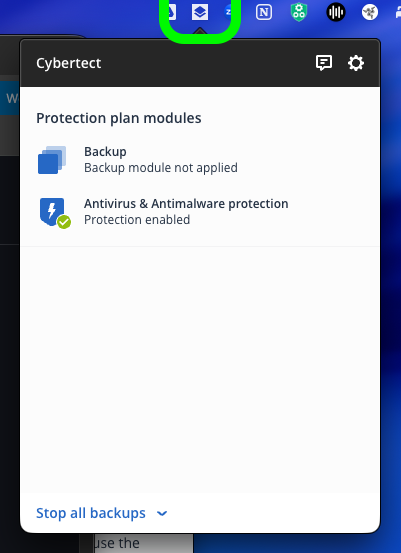
Once its installed, you will see it on your dock and the pop out will look like this.
Any problems, please reach out to our support helpdesk at help@manageditsupport.net
Was this article helpful?
That’s Great!
Thank you for your feedback
Sorry! We couldn't be helpful
Thank you for your feedback
Feedback sent
We appreciate your effort and will try to fix the article